Saturday, 6 April 2013

How to Convert VOX files to MP3, WAV, WMA, M4A ?

 Tags: vox convereter mac, play vox on mac, vox to mp3, vox to wav, vox to wma

Overview
VOX, short for Dialogic ADPCM, is an open audio file format optimized for storing digitized voice data at a low sampling rate.

VOX files are most commonly found in telephony applications or an occasional arcade redemption game. However, due to the audio codec and the low audio bitrate (usually in 4-bit samples) and low sample rate (usually with frequency of 8000 Hz or 6000 Hz), VOX is not compatible with most media players.

In order to play VOX anywhere, a recommended solution is to convert VOX to other popular audio formats like converting VOX to MP3, VOX to WAV, VOX to M4A, VOX to WMA and etc.

The following article will introduce a powerful VOX Converter as well as a step by step guide on how to convert VOX audio files to other audio formats.

This guide applies to:


Convert VOX Dialogic ADPCM files on Mac or Windows
Convert VOX to MP3, WAV, WMA, M4A, FLAC, OGG, MP2, AIFF, AU, RA, AC3 and etc
Convert VOX to play VOX on Mac iTunes, QuickTime; Windows Media Player; portable devices like iPod, iPhone, iPad, Android, Nokia, MP3 player, BlackBerry and etc
Convert other audio formats like VOC, SHN, QCP, AMR, FLAC, PCM, APE, OGG, MPC, CUE, TTA, 3GA, MP2 and etc
Convert video AVI, WMV, MP4, MOV, MPG, FLV, MKV, MXF, AVCHD, ASF, and etc to audio formats

Make Preparation: Run VOX Converter

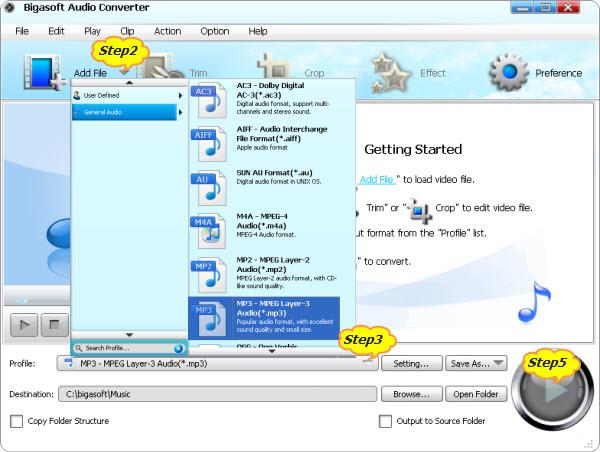
Free download the professional VOX Converter - Bigasoft Audio Converter (Windows Version, Mac Version), install and launch it, the following interface will pop up.


Bigasoft Audio Converter, the powerful VOX to MP3 and other audio converter, can easily and fast convert VOX to any other popular audio formats like convert VOX to MP3, convert VOX to WAV and etc. It also support converting VOC, QCP, AWB, AMR, 3GA, M4R, MPC, FLAC, OGG, APE, Apple Lossless M4A, AIFF, AU, RA and etc to all popular audio formats or converting various video formats to audio formats.

Step 1 Add VOX audio files

Click the "Add File" button to add the VOX audio files to Bigasoft Audio Converter. This ideal VOX Audio Converter also supports drag and drop function.


Step 2 Set desired output audio format

Click the "Profile" drop-down triangle menu to select preferable audio format like MP3, WAV and etc that you want to convert VOX to.

Step 3 Finish VOX conversion

Click "Convert" button to start converting VOX to MP3, WMA, WAV, AC3, M4A and etc, it will be finished in few minutes with high output audio quality.

Resources

How to Convert VOX to WAV, MP3, WMA, M4A to Play VOX anywhere?

Learn more about Bigasoft Audio Converter ...


Learn more about Bigasoft Audio Converter for Mac ...

Related Articles

How to Convert VOC to MP3, WAV on Mac or PC?

How to Convert Samsung Galaxy S4 Recorded 3GA to MP3, WAV, WMA on Mac or Windows

 Tags: samsung galaxy s4 3ga to mp3, 3ga converter for mac

The 3GA file extension .3ga often refers to the voice recorded files from mobile phones like Android, Samsung Galaxy S2, S3, Nokia and etc. The 3GA audio can use AMR-NB, AMR-WB, AMR-WB+, AAC-LC, HE-AAC v1 or Enhanced aacPlus (HE-AAC v2) audio codec.

Troubleshooting with 3GA Audio files

Can't open files with 3GA file extension on Windows 8, 7, XP, Vista, or 2000.
My wife sent me a .3ga file from her Samsung Galaxy S2 Smart Phone. I couldn't open it in any of the applications I had on my Mac.
Unable to edit 3GA audio files like use them in e.g. a video in Windows Live Movie Maker
When try to add 3GA to Windows Media Player, I get a message said "The file you are attempting to play has an extension that does not match the file format. Playing the file may result in unexpected behavior..."
Be warned when upload iMovie creations to YouTube if CAF audio files from iLife Sound Effects Library are used.
When I rename the file extension of my 3GA files from .3ga to .mp3, they play in VLC but not in Winamp, also loses sound quality when doing it this way.

Solution

If your media player doesn't contain direct support for 3GA audio files, but supports 3GP multimedia files, rename .3ga to .3gp or .mp3, then you can play the renamed 3GA files in most situations.

If your media player does not natively support 3GP and 3GA, a recommended solution is to convert 3GA to other popular format like MP3, WMA, WAV, M4A and etc. Bigasoft Audio Converter is just the right 3GA to MP3 Converter which can convert 3GA to WMA, WAV, MP3, M4A, AC3, OGG, FLAC, RA, AU, AIFF, MP3 and etc. Aside from converting 3GA recorded voice files, Bigasoft Audio Converter also can convert QCP, AMR, AWB, FLAC, OGG, SHN, TTA, MPC, PCM, APE, VOC, VOX, AIFF, Apple Lossless and etc to MP3, WAV, and WMA and etc. In addition, it can extract audio from all kinds of video formats and save as MP3, WAV, FLAC, WMA, AC3, and so on.

How to Convert 3GA to MP3, WMA, WAV?

The following will description a step by step guide on how to convert 3GA files to MP3 with the help of Bigasoft Audio Converter on Windows or Mac, this guide also applies to convert 3GA to WAV, WMA, M4A, RA, AC3 and etc.

Make Preparation: Run Bigasoft Audio Converter

Free download the powerful 3GA to MP3 Converter - Bigasoft Audio Converter (Windows Version, Mac Version), install and fire up.
Step 1 Add 3GA voice recorder files

Click the "Add File" button to import the .3ga audio files to Bigasoft Audio Converter. This powerful 3GA Converter also supports drag and drop function.
How to Convert 3GA to MP3, WMA, WAV and etc on Mac or Windows

Step 2 Set MP3 as output profile

Click the "Profile" drop-down list at the bottom of 3GA to MP3 Converter interface to select MP3-MPEG Layer-3 (*.mp3) from the " General Audio" category.

Step 3 Finish converting 3GA to MP3

Click "Convert" button to start and finish the 3GA to MP3 conversion.

Resources
How to Convert 3GA to MP3, WAV, WMA on Mac/Windows


Related Articles

How to Convert SHN to FLAC, MP3, WAV, WMA, AC3, and M4A on Mac or PC?

How to Convert RAM to MP3, WAV, WMA, AVI, MP4, WMV?

 Tags: ram to mp3,  ram to wav, ram to wma, ram converter for mac, how to convert ram to mp3

Overview
Often encountered issues in playing or converting RAM files? Never mind! The following article will give the answer. 

Symptoms in converting RAM files

Situation 1: I recently acquired some RAM (RealPlayer files) and I'm desperate to convert them to MP3. Then I have downloaded several decoders for converting .ram to mp3. But whatever I use, the converter keeps on going forever and nothing works out.

Situation 2: I have several .ram audio files that I would like to convert to .mp3 so that I might play them on my Sandisk m240 mp3 player. The files are all 1KB in size, and whenever I click on one of them RealPLayer opens and starts playing the file. I tried using Audacity, but receive a message telling me that the files cannot be opened since they are Playlist files which only contain links to other files.

Situation 3: I have a bunch of *.ram files. They are 1Kb and contain a link to a *.rm file on the net somewhere. The files are Audio and video. Is there a way to convert these files to anything like *.wmv *.avi or *.mpg?
What is .ram file?

In mention of .ram, it is usually referred as the file extension for the RealAudio file format. In many cases, web pages do not link directly to a RealAudio file. Instead, they link to a .ram (Real Audio Metadata) or SMIL file. This is a small text file containing a link to the audio stream. When a user clicks on such a link, the user's web browser downloads the .ram or .smil file and launches the user's media player. The media player reads the PNM or RTSP URL from the file and then plays the stream.

Another case about .ram file is that we mistakenly save the .rm or .ra media files as the wrong .ram file extension.

How to successful convert RAM to other media format?

The following will introduce a step by step guide on how to convert RAM files to other media format like how to convert RAM to MP3, RAM to WAV, RAM to WMA, RAM to AVI, RAM to MP4, RAM to WMV and etc.
Step 1 Free download and run Bigasoft RealPlayer Converter

Free download the professional RAM Converter - Bigasoft RealPlayer Converter (for Windows, for Mac), install and run it, the following interface will pop up.


Bigasoft Real Player Converter, the powerful RAM to MP3 Converter, can convert all kinds of RealVideo and RealAudio media files including RAM, RA, RM, RMVB, RV, etc to all popular video and audio formats including MP3, WMA, WAV, AC3, M4A, FLAC, OGG, AVI, MP4, WMV, MOV, 3GP, FLV, H.264, MKV, VOB, Xvid, DivX, OGV, WebM, MPEG, ASF and etc. It also can convert other video or audio files to RealAudio .ra or RealMedia .rm or .rmvb.

Step 2 Import .ram media files to RAM Converter

First check the .ram file size:

If it's large (like considerably more than 1-2K), rename the file with the .ra (for audio) or .rm (for video) extension. Then simply drag and drop the renamed RAM file to Bigasoft RealPlayer Converter. You can also click "Add File" button to import the renamed RAM file to this RAM Converter for Mac or Windows.

If the file size is about 1kb, the .ram is the meta file for Real Media, so you can use Notepad to open it and see what's it in. Inside it contains the address of the actual real media file which you will have to download if you expect to convert it. If the address is stated as http://...... .ra or http://...... .rm , then you can download that file separately. Finally add the downloaded files to Bigasoft RealPlayer Converter.
How to Convert RAM to MP3 With this RAM to MP3 Converter for Mac or Windows

Step 3 Set output format

Click the "Profile" drop down list to select desired video or audio format as output profile:

To convert RAM to WAV, MP3, WMA or other audio format, find it from the "General Audio" category.

To convert RAM to AVI, MP4, WMV, MOV or other video format, find it from the "General Video" category.

Step 4 Finish converting RAM files

Click "Convert" button to start the RAM to other media format conversion like RAM to AVI, RAM to MP4, RAM to WMV, RAM to MOV, RAM to WAV, RAM to WMA, RAM to MP3, and etc.

Resources


Learn more about Bigasoft RealPlayer Converter ...


Learn more about Bigasoft RealPlayer Converter for Mac ...

Related Articles

How to Convert Real Player to AVI?

Sunday, 20 January 2013

How to Extract MP3, WMA, M4A, WAV, AC3, FLAC, OGG, AU, AIFF, RA from Video files?

All-in-one Audio Extractor and Converter
Bigasoft Audio Converter is an all-in-one app, which features as a professional one-step audio extractor and a powerful audio converter. It enables you to extract audio with mono, stereo or 5.1 channel from various movies or music videos and then convert the extracted audio to MP3, WMA, Apple Lossless M4A, FLAC, AIFF, WAV, OGG, AC3, RA, MP2, AU and etc with a single click.

Key Features
  • Extract audio from MOV, MP4, WMV, AVI, MPG, MKV, VOB, 3GP, FLV, WebM, SWF, F4V, DivX, Xvid, ASF, RMVB, MVI, WTV, DVR, H.264, DV, MXF, AVCHD, MOD, TOD, MTS and etc.
  • Extract audio from FLV, WMV, MP4 and etc to AC3, MP3, WMA, Apple Lossless M4A, FLAC, AIFF, WAV, OGG, RA, MP2, AU and more
  • Extract audio with mono, stereo or 5.1 channels from all kinds of music video and movies files like extract audio from MKV FLAC to AC3 5.1 channel.
  • Extract audio soundtrack with 32 to 320 Kbps from various video files like extract audio from AVI to MP3 at 320kbps
  • Convert between various audio formats including FLAC, OGG, APE, PCM, SHN, VOC, QCP, ARM, AWB, AIFF, WMA, WAV, Apple Lossless M4A, AIFF, AC3, AAC, MP3, MP2, AU, DTS, RA, CUE, TTA, MPC and etc.
How to Extract Audio from Video?
The following will take extract audio from MP4 as an example, it also applies to extract audio from WMV, extract audio from VOB, MKV, MOV, AVI and etc.

Make Preparation: Free Download Audio Extractor and run it
Free download the powerful Audio Converter and Extractor - Bigasoft Audio Converter (Windows Version, Mac Version), install and run it.(To extract audio from MP4 on Windows, download the windows version; to extract audio on Mac, download the Audio Extractor for Mac version.)

Step 1  Add MP4 video
Click the "Add File" button to import the MP4 video from which you want to extract audio. Or you can also drag the MP4 file directly to the main interface of this software.
How to Extract Audio MP3, WAV, WMA from Video MP4, FLV, AVI and etc

Step 2  Set output audio format
Usually, the default output profile is MP3. If you want to extract audio from MP4 to MP3, just ignore this step.
If you want to extract the audio from video to other audio format like Apple Lossless M4A, AIFF, WAV, WMA, AC3, FLAC, OGG and etc, click the "Profile" drop-down button to select your preferable audio format from the " General Audio" category.

Step 3  Adjust the output audio parameters (Optional)
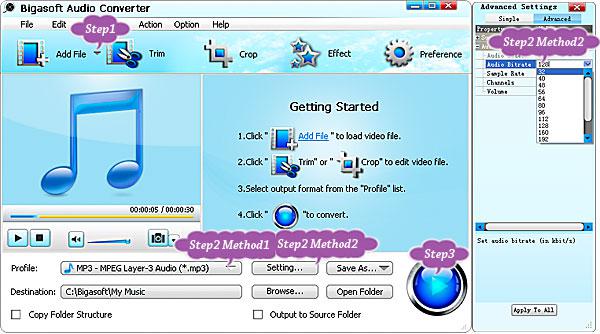
Click "Setting..." button, the "Advanced Settings" Window will pop up right beside the main window. In the "Advanced Settings" Window, click "Advanced" tab:
  • Click "44100" tab on the right side of "Sample Rate" to select desired audio sample rate like 96000;
  • Click "2 stereo" tab on the right side of "Channels" to set preferable audio channels like 5.1;
  • Click "Audio Bitrate" right side tab to set desired audio bitrates like 320;
  • Click "100%" tab on the right side of volume to select preferable volume ratio from the drop-down list or just enter the desired volume ratio like 300%, 400%.
Step 4  Finish extracting audio from MP4 video
Click "Convert" button to start and finish the MP4 to audio extraction and conversion with this powerful Audio Extractor and Converter

Resources
FREE Download and Start Enjoying Now (9.85MB)
Learn more about Bigasoft Audio Converter ...
Got a Mac? Free download your copy here (29.05MB)
Learn more about Bigasoft Audio Converter for Mac ...

Related Articles
How to Adjust Audio Volume When Converting
How to Split Audio/Video by Chapter Markers

Wednesday, 19 September 2012

How to Convert SHN to MP3, FLAC, WAV and etc on Windows or Mac

Shorten (SHN) is a lossless compression format and is used to losslessly compress CD-quality audio files (44.1 kHz 16-bit stereo PCM). It can compact files without losing quality. Though SHN is no longer developed, SHN is still in use by some traders and sharers of live music, concerts, shows and albums.
Since few players or media writers attempt to decompress Shorten files, in order to successfully play SHN audio files on all kinds of media players like Windows Media Player, iTunes, QuickTime and etc or on all kinds of portable devices like MP3 player, iPod, iPhone, iPad, Android Phone, BlackBerry, Nokia, PSP, PS3, Zune and etc, a recommended solution is to convert SHN to a more popular audio format like MP3, WAV, WMA, AIFF, M4A, FLAC, AC3 and etc.
Bigasoft Audio Converter is just the right SHN Converter! It can directly convert the lossless audio SHN to other lossless audio formats like convert SHN to FLAC, convert SHN to WAV, convert SHN to AIFF, convert SHN to ALAC. It also can convert straight from the lossless SHN to lossy audio format like convert SHN to MP3, MP2, WMA, AC3, OGG, AU, RA and etc.
Step by Step Guide on How to Convert SHN Audio Files
The following will introduce a step by step guide on how to convert SHN to any other audio formats with the help of the powerful SHN Converter - Bigasoft Audio Converter.
This guide applies to:
  • Directly convert SHN to FLAC, WAV, AIFF, Apple lossless ALAC and more lossless audio format
  • Directly convert SHN to MP3, WMA, AC3, MP2, OGG, AU, RA and etc lossy audio format
  • Straight convert all kinds of albums, concerts or shows in SHN to any other audio formats
  • Besides converting SHN, it also applies to convert more recent lossless audio codecs such as FLAC, Monkey's Audio (APE), TTA, and WavPack (WV) to MP3, WAV, WMA, M4A, AC3, OGG, FLAC, MP2, RA, AIFF, AU and etc.
Make Preparation: Run SHN Converter
Free download the powerful SHN Converter - Bigasoft Audio Converter (Windows Version, Mac Version), install and fire up.

Step 1  Add SHN audio file
Click the "Add File" button to add SHN audio file to this SHN conversion software. This powerful SHN Converter also supports drag and drop function.
How to Convert SHN to FLAC, MP3, WAV, WMA and etc

Step 2  Set output audio format
Click the "Profile" drop-down button to select preferable output audio format like MP3, FLAC, WAV, WMA, AC3 or M4A and etc from the " General Audio" category.

Step 3  Finish converting SHN to any other audio format
Click "Convert" button to start and finish converting SHN to the desired audio format like SHN to MP3, SHN to FLAC, SHN to WAV, and etc.

Conclusion
It will become so easy to play SHN albums/concerts/shows on all kinds of media players and portable devices as soon as you convert SHN to the desired supported audio format with the above powerful SHN Converter and step by step guide.

Resources
FREE Download and Start Enjoying Now (10.26MB)
Learn more about Bigasoft Audio Converter ...
Got a Mac? Free download your copy here (29.98MB)
Learn more about Bigasoft Audio Converter for Mac ...

Related Articles
How to Convert QCP to MP3, WAV, WMA on Windows or Mac
Convert CAF Audio to WAV, MP3, AAC, M4a, OGG on Windows and Mac

Thursday, 2 August 2012

How to Convert TTA CUE file to MP3, FLAC, WAV, AIFF, and WMA?

TTA is the filename extension of audio files created by the True Audio codec. It performs lossless compression on multichannel 8, 16 and 24 bit data of uncompressed wav input files with compression ratios up to 30% of the original. The TTA lossless compressed audio format supports both ID3v1/ID3v2 information tags and APEv2. The TTA lossless audio codec allows for the storage of up to 20 audio CDs worth of music on a single DVD-R, retaining the original CD quality audio, plus detailed information in the ID3 tag format.
However, this audio format is not compatible with most media players like iTunes, QuickTime, or portable devices like iPod, iPhone, PSP, BlackBerry or MP3 player. Worse still, if the TTA audio is one big file which contains multiple tracks, it is difficult for us to split them into individual songs.
The following article just aims to provide a step by step guide on how to convert TTA to a more compatible format as well as how to split TTA audio.
It solves:
  • Convert TTA to all popular audio formats like TTA to MP3, TTA to WAV, TTA to FLAC, TTA to AAC, TTA to M4A, TTA to ALAC, TTA to AIFF, TTA to WMA and etc.
  • Convert and split TTA file into multiple flac, MP3, WAV, WMA OR M4A files.
  • Play TTA in iTunes, iPod, iPhone, MP3 player, PSP, PS3, Zune, BlackBerry and more digital devices.
  • Convert and split M4B, FLAC, CUE, CAF, and more audio formats.

Step 1 Free download and run Bigasoft Audio Converter
Free download the powerful TTA Converter - Bigasoft Audio Converter (Windows Version, Mac Version), install and run it.
Acting as the professional TTA Converter, Bigasoft Audio Converter can fast convert TTA to MP3, FLAC, WAV, AIFF, WMA, AC3, M4A, MP2, AU, RA and more audio format. It even enables to split TTA CUE audio file to individual songs in FLAC, MP3 or WAV formats. In addition to split and convert TTA auido, Bigasoft Audio Converter also can convert and split FLAC, CAF, M4B, CUE, and more audio formats.
Step 2 Import TTA audio
Click the "Add File" button to import TTA audio to Bigasoft Audio Converter. Or you can also drag and drop the TTA audio file directly to the main interface of this software.
(click to enlarge)How to Convert TTA to MP3, WAV, FLAC, WMA, M4A and etc
Step 3 Set desired output audio format
Click the drop-down button on the right side of the "Profile" to select desired output audio format like MP3 from the " General Audio " category. (You can also select FLAC, WAV, WMA, M4A, AC3 and more as the output audio format according to your specific need.)
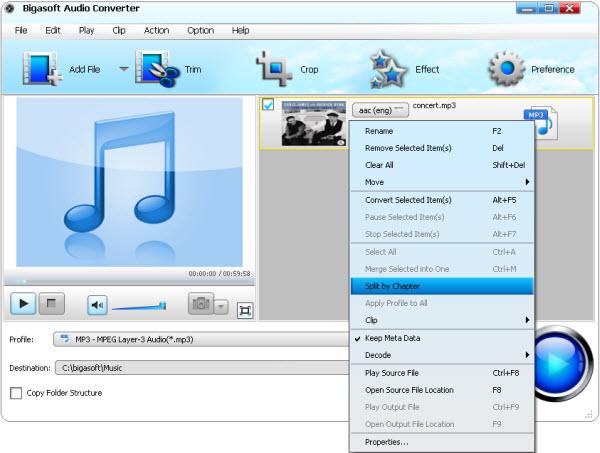
Step 4 Split TTA audio (Optional)
If the TTA audio is with a .cue file which contains multiple tracks, and you like to split them into individual songs, follow the guide below:
(click to enlarge)Split TTA with CUE file to multiple FLAC, MP3, WAV tracks
  • To ensure successfully split the TTA audio, the .cue file shall be in the same folder with the TTA audio file.
  • Right click on the TTA audio file listed in the main interface of Bigasoft Audio Converter, and then select "Split by Chapter" option from context menu, the long and large TTA audio will be automatically splitted to tracks.

Step 5 Finish converting (and splitting) TTA audio
Click "Convert" button start and finish converting (and splitting) TTA to desired audio format (and single tracks).
Conclusion
It is just easy to split and convert TTA to FLAC, MP3, WAV, M4A, WMA and more audio format with the above powerful TTA Converter and step by step guide. Wait no more, simply free download this powerful software to give it a free try!
Resources
How to Split and Convert TTA to MP3, FLAC, WAV, AIFF, WMA?
FREE Download and Start Enjoying Now (10.13MB)
Learn more about Bigasoft Audio Converter ...
Got a Mac? Free download your copy here (29.60MB)
Learn more about Bigasoft Audio Converter for Mac ...

Easily Compress MP3, WAV, FLAC, WMA, M4A, AIFF, PCM

This article will introduce a powerful Audio Compressor and a step by step guide on how to compress audio WAV, MP3, FLAC, WMA, M4A, AIFF, PCM, OGG, etc. to smaller file size with high audio quality.
About the Powerful Audio Compressor
As the powerful Audio Compressor software, Bigasoft Audio Converter can fast compress audio in whatever audio formats to smaller file size with almost no loss of audio quality. It can compress MP3, WAV, FLAC, WMA, M4A, AIFF, PCM, OGG, AAC, AC3 and etc to smaller file size without change the audio format. It also can compress audio as well as convert audio to any other audio format like compress WAV to MP3, compress FLAC to MP3.
Step by Step Guide on How to Compress Audio Files
The following will introduce a step by step guide on how to compress various audio files to smaller file size with the help of the powerful Audio Compressor software - Bigasoft Audio Converter.
This guide applies to:
  • Compress MP3, FLAC, WAV, WMA, M4A, AIFF, MP2, OGG, AC3, RA, AU and etc to smaller file size as well as keep the same audio format.
  • Compress WAV to MP3, AC3, M4A or AU with almost no loss of audio quality.
  • Compress FLAC to MP3, M4A or AC3 with high audio quality.
  • Compress AIFF to M4A, MP3, AC3 and more audio format.
  • Compress M4A to MP3, WMA, AC3, RA and etc.
  • Compress WMA to MP3 with smaller file size.
  • Compress PCM, M4B, MPC, QCP, AMR, AWB, TTA, CUE, APE and etc to MP3.

Preparation: Launch Bigasoft Audio Converter
Free download the powerful Audio Compressor - Bigasoft Audio Converter (Windows Version, Mac Version), install and launch it, the following interface will pop up.
(click to enlarge)The Powerful Audio Compressor
Step 1 Add Audio file which you want to compress
Click the "Add File" button to add the will be compressed audio whatever it is in MP3, FLAC, WAV, WMA, M4A, AIFF, MP2, OGG, AC3, RA, AU, PCM, M4B, MPC, QCP, AMR, AWB, TTA, CUE, APE and etc audio format.
(click to enlarge) How to Compress WAV, MP3, FLAC, WMA, M4A, AIFF, PCM and etc?
Step 2 Set for output audio file size
Method 1: Compress audio to MP3
Click the drop-down button on the right side of the "Profile" button to select MP3 - MPEG Layer-3 Audio (*.mp3) as output audio format from "General Audio" category.
Tips:
  • This method suits to compress uncompressed audio formats such as compress WAV, AIFF, AU or raw header-less PCM.
  • This method also suits to compress lossless compressed audio formats like compress FLAC, Monkey's Audio (filename extension APE), WavPack (filename extension WV), TTA, ATRAC Advanced Lossless, Apple Lossless (filename extension m4a), MPEG-4 SLS, MPEG-4 ALS, MPEG-4 DST, Windows Media Audio Lossless (WMA Lossless), and Shorten (SHN).
  • It also applies to compress lossy compressed audio formats including Vorbis, Musepack, AAC, ATRAC and Windows Media Audio Lossy (WMA lossy).
  • It even helps to compress M4B, AMR, QCP, AWB, RA, and etc.
  • However, this method does not apply to compress MP3 audio file. If you want to compress MP3 to smaller file size, you may refer to Method 2.
Method 2: Change the output audio bitrate
Click "Setting..." button, the "Advanced Settings" Window will pop up right beside the main window. In the "Advanced Settings" Window, click "Advanced" tab, and then go to "Audio Bitrate" column, click 128 tab on the right side of "Audio Bitrate" to choose desired audio bitrate like 32, 40 as output audio bitrate from the drop-down list.
And then click the "Profile" drop-down button to select your desired output audio format just like the above Method 1: you can either select the same audio format just like the original audio format or select an audio format different from the original one.
Tips:
  • This method suits to compress all kinds of audio files.
  • With this method, you can compress audio with or without changing the original audio format.
  • If you want to compress MP3, it is better to set the output format as MP3.

Step 3 Compress Audio
Click "Convert" button to start the audio compression, it will be finished with fast compression speed and high output audio quality.
Conclusion
It is that easy to compress audio WAV, MP3, AIFF, AU, FLAC, WMA, M4A, PCM, ALAC, M4B, MPC, QCP, AMR, AWB, TTA, DST, CUE, APE, RA and etc to smaller file size with almost no loss of audio quality! Why wait? Just download this powerful Audio Compressor software to have a free try!
Resources
How to Compress Audio WAV, MP3, FLAC, WMA, M4A, AIFF, PCM and etc?
FREE Download and Start Enjoying Now (10.13MB)
Learn more about Bigasoft Audio Converter ...
Got a Mac? Free download your copy here (29.60MB)
Learn more about Bigasoft Audio Converter for Mac ...
Related Articles
Convert and Compress Fraps to AVI, MP4 for YouTube and iMovie
How to Compress Video MKV, AVI, MP4, MPEG, MOV, FLV, WMV, VOB?